 Ultra+ Wiki
Installation
Ultra+ Manager (Recommended)
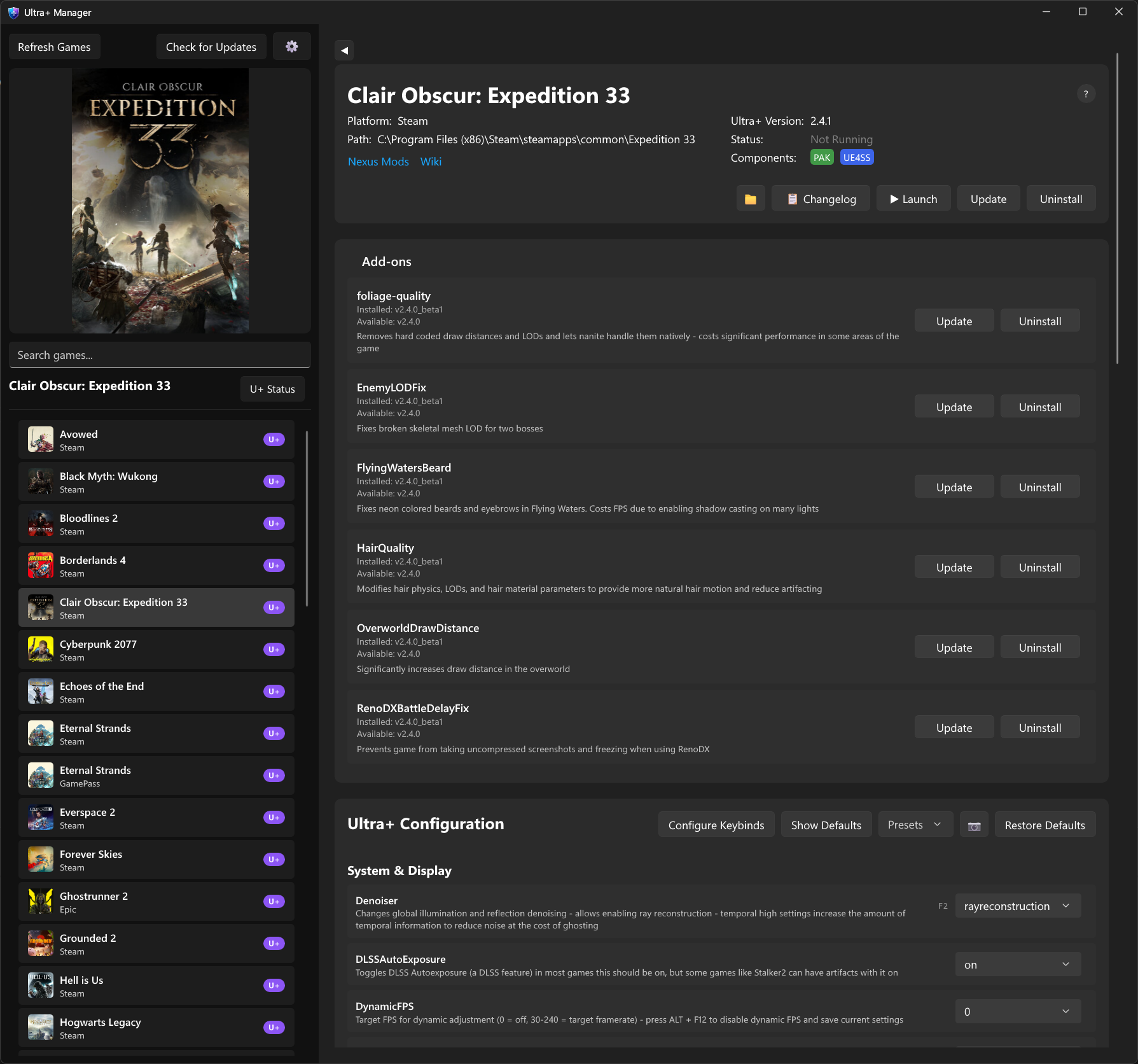
UPM provides an easy way to install, update, and configure Ultra+ mods. It is the intended U+ experience and provides many features that manual installation does not support.
- Download and install Ultra+ Manager (UPM)
- All of your games should be detected, if not you can manually select the games root folder
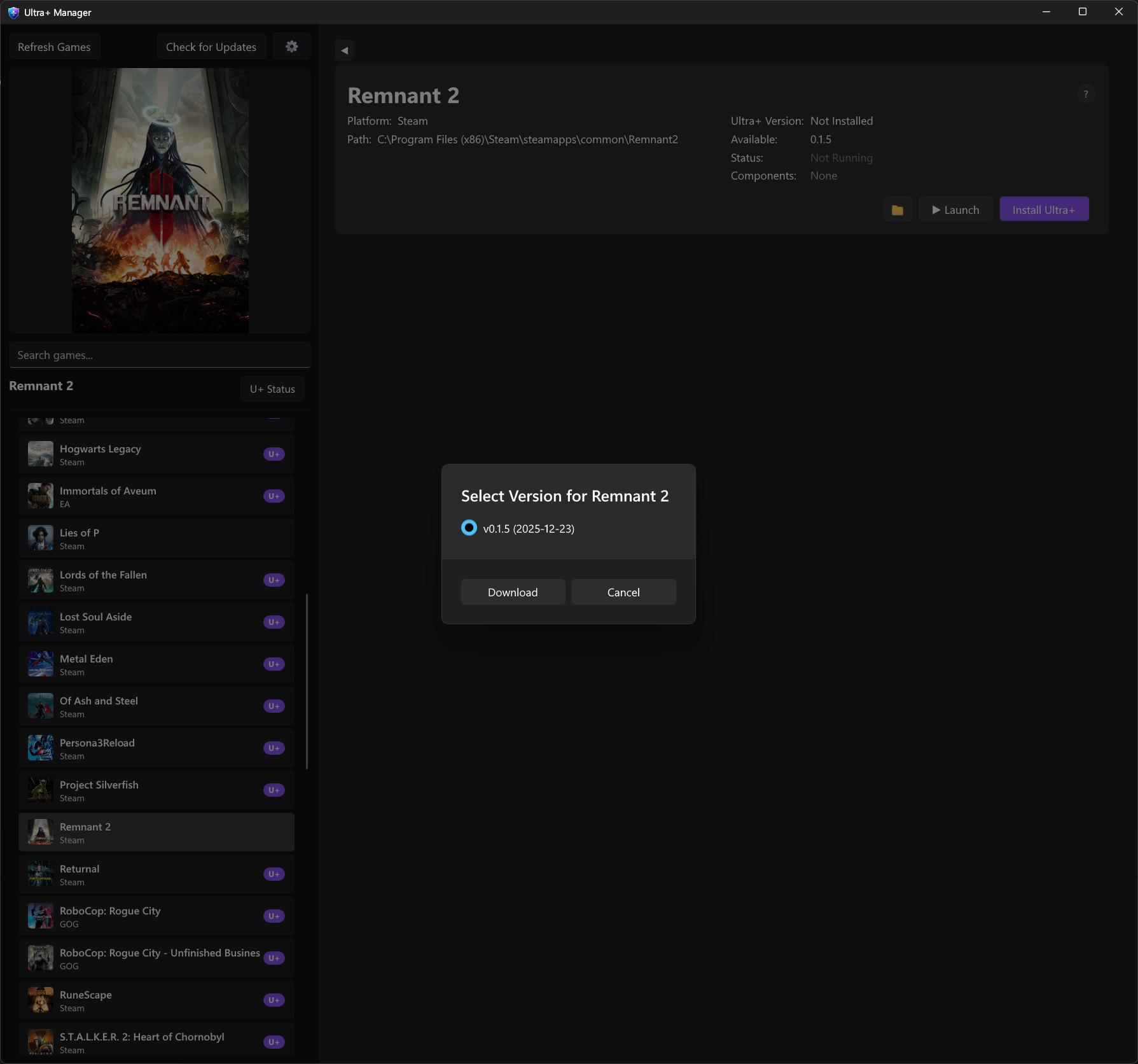
- Click the game and then click Install Ultra+ (or Update) and download the latest version
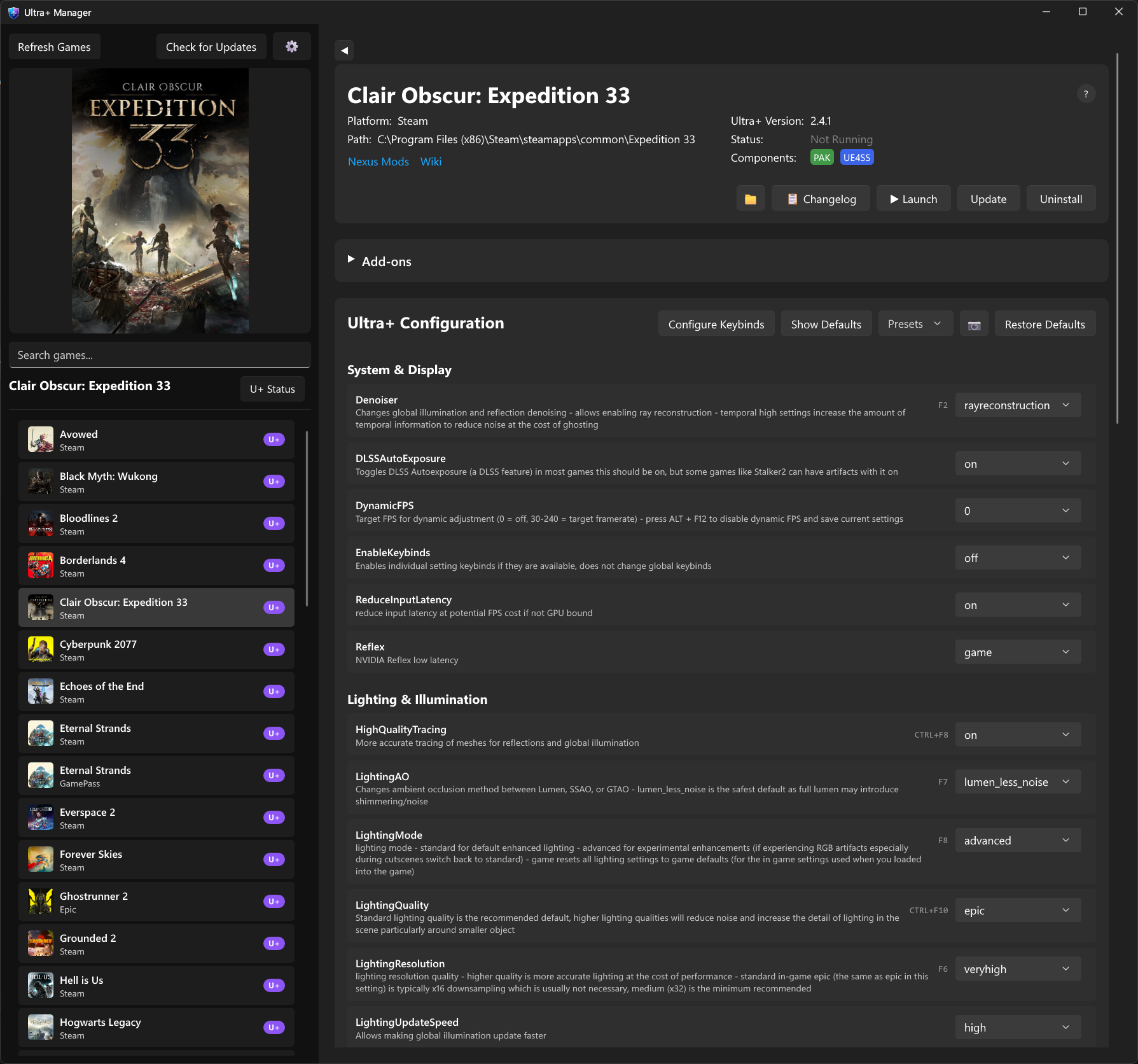
All settings can be configured in the game view.
Manual Installation
⚠️ Manual installation is supported but not recommended. UPM provides the intended U+ experience.
- Extract everything from the main zip to your game directory
- Follow any additional game-specific installation steps
For Gamepass users (if applicable): the Win64 folder will be named WinGDK instead of Win64.
UE4SS
- All of our UE games, unless specified as pak only, utilize UE4SS which can be found at UE4SS
- UE4SS is prepackaged with our mods
- We typically ship with recent experimental latest builds and rely on some newer UE4SS features
- Users manually installing must sort out UE4SS installation themselves if you have an existing install
- Installing with UPM has a “I manage my own UE4SS” checkbox that will prevent installing any UE4SS related files
Configuration File Location
After installation, the configuration file is located at:
GameInstallPath\GamePath\Binaries\Win64\ue4ss\Mods\UltraPlusExtensions\scripts\config\UltraPlusConfig.ini
Add-on Installation
- In UPM, expand the add-ons section for a game and use the download and install buttons to install addons